
📋 Table of Contents
- What Is a Firestick Remote
- How To Connect Firestick Remote, Step-by-Step
- How To Pair a New Firestick Remote
- Why Your Firestick Remote Is Not Working
- Troubleshooting Solutions
- Firestick Device Compatibility
- Comparison Table of Firestick Models
- Why Choose GET IPTV UK
- How To Connect Firestick Remote Using the Fire TV App
- Expert Tips to Keep Your Firestick Remote Connected
- Frequently Asked Questions
- Conclusion
How To Connect Firestick Remote, Your Complete 2026 Guide
If you have just purchased a new Amazon Fire TV Stick or noticed your Firestick remote has stopped responding, you are in exactly the right place. Knowing how to connect Firestick remote properly can save you hours of frustration, and in most cases the fix takes less than 60 seconds. Whether you are setting up your device for the first time, pairing a replacement remote, or troubleshooting a Bluetooth connection issue, this complete guide on how to connect Firestick remote covers every scenario in plain, easy-to-follow steps.

At GET IPTV UK, we support thousands of subscribers across the United Kingdom who stream premium IPTV UK content on their Fire TV Sticks every single day. Our team of streaming specialists has compiled this definitive 2026 reference guide so you can get your Firestick remote connected quickly, and get straight back to enjoying the best United Kingdom IPTV experience available.
From the Fire TV Stick Lite all the way to the powerful Fire TV Cube, this guide applies to every Amazon Fire TV device currently available. We have also included a detailed troubleshooting section, a Firestick model comparison table, and answers to the most frequently asked questions our support team receives every week.
📲 Ready to stream over 30,500+ live channels on your Firestick? Start your free 24-hour IPTV trial today.
📲 Start Your Free 24H IPTV TrialWhat Is a Firestick Remote
The Amazon Firestick remote is a Bluetooth-enabled voice remote designed to control your Fire TV Stick, Fire TV Stick 4K, Fire TV Stick 4K Max, and Fire TV Cube devices. Unlike older infrared remotes that require line-of-sight, the Firestick remote uses Bluetooth Low Energy (BLE) technology, which means it works from different angles and even from behind obstacles, making it far more versatile for modern home setups.
Most current-generation Firestick remotes include an Alexa voice button, allowing you to search for content, control smart home devices, check the weather, and navigate menus entirely by voice. The remote also features dedicated buttons for power, volume, muting your TV, and quick-access shortcuts to popular streaming services.
Understanding how your Firestick remote works, and specifically how it connects via Bluetooth rather than infrared, is essential before attempting to pair or reconnect it. This knowledge helps you troubleshoot more effectively when issues arise with your Firestick setup or your IPTV UK streaming experience.
How To Connect Firestick Remote, Step-by-Step
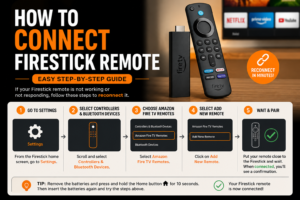
The standard pairing process for a Firestick remote is straightforward and takes approximately 60 seconds when followed correctly. Most remotes that ship with a new Fire TV Stick will pair automatically the first time you power on your device. However, if you are connecting a replacement remote, re-pairing after a factory reset, or troubleshooting a disconnected remote, you will need to follow these manual steps.
Power On Your Fire TV Stick
Plug your Fire TV Stick into your TV’s HDMI port and connect the power cable. Switch your TV to the correct HDMI input to see the Amazon Fire TV home screen or setup screen. Ensure the device has fully loaded before proceeding.
Insert Batteries Into Your Remote
Open the battery compartment on the back of your Firestick remote and insert two AAA batteries, ensuring correct polarity as indicated by the markings inside the compartment. Fresh batteries are essential for a reliable Bluetooth connection.
Hold the Home Button for 10 Seconds
Press and hold the Home button (the circle icon) on your Firestick remote for at least 10 seconds. This initiates the Bluetooth pairing mode and broadcasts the remote’s signal to the Fire TV device. Keep the remote within 3 feet of the Firestick during this process.
Wait for the Pairing Confirmation
Your Fire TV Stick will detect the remote and display a pairing confirmation on screen. You should see a notification or hear a chime indicating that the remote has been successfully connected. On newer models, the remote’s LED light may flash during pairing and then remain solid once paired.
Test Your Remote
Press the directional buttons or the Home button to confirm the remote is responding correctly. If the on-screen cursor moves and menus respond, your Firestick remote is successfully connected and ready to use for IPTV UK streaming and all other content.
💡 PRO TIP: If the remote does not pair after the first attempt, try moving it closer to the Fire TV Stick and repeating the process. Bluetooth interference from other wireless devices such as Wi-Fi routers, cordless phones, or microwave ovens can sometimes disrupt the initial pairing.
How To Pair a New Firestick Remote
Pairing a brand-new or replacement Firestick remote requires accessing the Amazon Fire TV settings menu, which is accessible even if your existing remote is not working, by using the Amazon Fire TV mobile app as a temporary remote control.
Pairing via Settings Menu
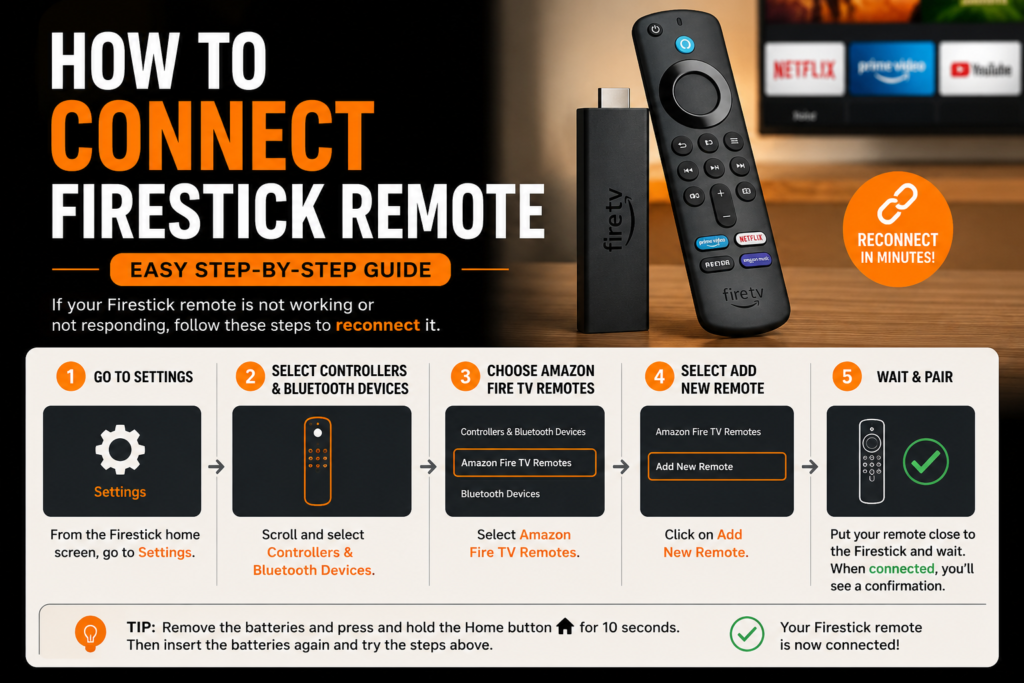
Navigate to Settings
From the Fire TV home screen, scroll to the top navigation bar and select Settings (gear icon). Then choose Controllers and Bluetooth Devices from the settings menu.
Select Amazon Fire TV Remotes
Inside Controllers and Bluetooth Devices, select Amazon Fire TV Remotes. This section displays all currently paired remotes and provides the option to add a new device.
Add New Remote
Select Add New Remote. Your Fire TV Stick will now enter discovery mode, actively scanning for nearby remotes in pairing mode.
Put Your Remote Into Pairing Mode
Press and hold the Home button on your new remote for 10 seconds. The Fire TV Stick will detect the remote and pair it automatically, completing the connection process.
🚀 Once your Firestick remote is connected, enjoy 30,500+ live channels with our premium IPTV UK service. Try it free for 24 hours.
📲 Get Your Free 24H IPTV TrialWhy Your Firestick Remote Is Not Working
If your Firestick remote has stopped responding or fails to pair, there are several common causes to investigate before replacing the remote entirely. Understanding these issues will help you resolve them quickly and get back to enjoying your favourite United Kingdom IPTV channels without delay.
Dead or Weak Batteries
The most common cause. Always try fresh AAA batteries before attempting any other troubleshooting steps.
Bluetooth Interference
Wi-Fi routers, other Bluetooth devices, or microwave ovens operating on similar frequencies can interrupt the pairing signal.
Remote Too Far Away
During pairing, keep the remote within 3 feet of the Fire TV Stick. Bluetooth range limitations affect initial connection setup.
Outdated Firmware
An outdated Fire TV operating system can cause remote pairing failures. Check for software updates in your device settings.
Pairing Memory Full
Fire TV devices can only store a limited number of paired remotes. Remove unused devices from the Bluetooth settings menu to free up pairing slots.
Wi-Fi Channel Conflict
If your router uses the 2.4GHz band near Bluetooth channel 11, interference may disrupt your remote. Switching to 5GHz can resolve this instantly.
Troubleshooting Solutions for Your Firestick Remote

If following the standard steps on how to connect Firestick remote did not resolve your issue, work through these troubleshooting solutions in order. These are the same steps our IPTV UK technical support team uses to help customers resolve Firestick remote problems every day.
Solution 1: Replace the Batteries
Remove the old batteries from your remote and replace them with brand-new AAA batteries. Do not mix old and new batteries, as uneven power delivery can prevent a successful Bluetooth pairing. After inserting fresh batteries, attempt the pairing process again from the beginning.
Solution 2: Restart Your Fire TV Stick
Unplug your Fire TV Stick from the power adapter, wait 30 seconds, then plug it back in. Allow the device to fully boot before attempting to pair the remote. A fresh restart clears temporary Bluetooth connection errors and resets the device’s discovery state.
Solution 3: Reset Your Firestick Remote
To perform a complete remote reset, press and hold the Back button, Menu button (three horizontal lines), and Left directional button simultaneously for 12 seconds. Release all buttons, wait 5 seconds, then remove and reinsert the batteries. Finally, hold the Home button for 10 seconds to re-pair with your Fire TV Stick.
Solution 4: Use the Amazon Fire TV App
If your remote is completely unresponsive, download the free Amazon Fire TV app for iOS or Android. This transforms your smartphone into a temporary remote, allowing you to navigate to Settings, then Controllers and Bluetooth Devices, to add your physical remote.
Solution 5: Check for Interference and Reduce Distance
Move your Fire TV Stick to ensure it has clear line-of-sight to your remote during pairing. Temporarily switch off other nearby Bluetooth devices, and if possible, move your Wi-Fi router away from the Fire TV Stick. According to Speedtest by Ookla, a stable internet connection above 10 Mbps is recommended for buffer-free IPTV UK streaming on Firestick devices.
Solution 6: Factory Reset Your Fire TV Stick
As a last resort, perform a factory reset on your Fire TV Stick. This can be done by holding the Back button and Right directional button simultaneously for 10 seconds. Note that a factory reset erases all settings, installed apps, and account data. After the reset, your remote will automatically pair during the initial setup wizard. You can then reinstall your IPTV UK app and restore your subscription credentials.
💡 PRO TIP: After a factory reset, our team at GET IPTV UK will resend your IPTV UK credentials instantly via WhatsApp. Contact us anytime, 24 hours a day, and we will have you streaming again within minutes.
Firestick Device Compatibility
Our premium IPTV UK service is fully compatible with every Amazon Fire TV device currently available, as well as a wide range of other popular streaming platforms. Whether you are using a basic Fire TV Stick Lite or the powerful Fire TV Cube, you will enjoy the same premium channel lineup, crystal-clear 4K streams, and 24/7 customer support.
Below is a full breakdown of compatible devices for our United Kingdom IPTV service, along with the recommended apps for each platform. For detailed setup instructions for any of these devices, visit our IPTV installation guides.
| Device | Compatibility | Recommended App | Max Quality |
|---|---|---|---|
| Fire TV Stick Lite | ✓ Fully Compatible | IPTV Smarters Pro | Full HD 1080p |
| Fire TV Stick HD | ✓ Fully Compatible | TiviMate, IPTV Smarters | Full HD 1080p |
| Fire TV Stick 4K | ✓ Fully Compatible | TiviMate, GSE Smart IPTV | 4K Ultra HD |
| Fire TV Stick 4K Max | ✓ Fully Compatible | TiviMate, IPTV Smarters | 4K Ultra HD HDR |
| Fire TV Cube | ✓ Fully Compatible | TiviMate, OTT Navigator | 4K Ultra HD HDR |
| Smart TV (Samsung/LG) | ✓ Compatible | Smart IPTV (SIPTV) | Full HD / 4K |
| Android TV Box | ✓ Top Pick | TiviMate, OTT Navigator | 4K Ultra HD |
| Apple TV | ✓ Compatible | GSE Smart IPTV | 4K Ultra HD |
| Android Phone / Tablet | ✓ Compatible | IPTV Smarters Pro | Full HD |
| iPhone / iPad | ✓ Compatible | GSE Smart IPTV | Full HD / 4K |
For Android TV users and Apple TV owners, our service delivers the exact same premium channel lineup and stream quality as on Fire TV devices. Every subscription includes up to 5 simultaneous connections, so your whole household can enjoy IPTV UK content on different devices at the same time.
Comparison Table of Firestick Models
Choosing the right Amazon Fire TV device for IPTV UK streaming matters more than many people realise. The model you choose directly affects stream quality, loading speed, and overall performance. Here is a detailed comparison of all current Fire TV models to help you make the best choice for your United Kingdom IPTV setup.
| Model | Processor | Max Resolution | RAM | Alexa Remote | Best For IPTV UK |
|---|---|---|---|---|---|
| Fire TV Stick Lite | 1.7GHz Quad-Core | 1080p Full HD | 1GB | ✓ Basic | Budget streaming |
| Fire TV Stick HD | 1.7GHz Quad-Core | 1080p Full HD | 1GB | ✓ Voice + TV Controls | Everyday HD streaming |
| Fire TV Stick 4K | 1.7GHz Quad-Core | 4K Ultra HD HDR | 1.5GB | ✓ Full Alexa | Premium 4K IPTV |
| Fire TV Stick 4K Max | 2.0GHz Quad-Core | 4K Ultra HD HDR10+ | 2GB | ✓ Full Alexa | Best performance |
| Fire TV Cube (3rd Gen) | 2.2GHz Octa-Core | 4K Ultra HD HDR10+ | 2GB | ✓ Hands-Free Alexa | Ultimate home cinema |
For the best IPTV UK streaming experience, we strongly recommend the Fire TV Stick 4K Max or the Fire TV Cube (3rd Gen). Both devices offer the processing power needed to handle 4K Ultra HD streams without buffering, and their enhanced Wi-Fi 6 connectivity ensures a rock-solid connection for live sports and premium channels. For additional information on supported devices, see the official Amazon Fire TV Device Specifications.
📺 Test our premium IPTV UK service on your Firestick for free. No credit card, no commitment, just 30,500+ channels ready to stream.
📲 Claim Your Free 24H IPTV TrialWhy Choose GET IPTV UK for Your Firestick Streaming
Once your Firestick remote is connected and your device is ready to stream, the next step is choosing the right IPTV UK provider. With hundreds of providers competing for your subscription, it is crucial to choose one with a proven track record, genuine customer support, and a service built to perform consistently on Fire TV devices.
GET IPTV UK is the #1 rated IPTV UK provider trusted by over 50,000 subscribers across the United Kingdom. Our service is engineered specifically for UK viewers, delivering the channels, sports, and on-demand content you actually want, at a quality that free playlists simply cannot match.
30,500+ Live Channels
UK, sports, international, movies, kids, and news, the most comprehensive lineup available anywhere.
4K Ultra HD Quality
Crystal-clear 4K streams for sports events, movies, and premium channels optimised for Firestick 4K devices.
99.9% Server Uptime
Dedicated UK servers guarantee near-zero downtime. Unlike unreliable free services, our infrastructure never sleeps.
24/7 WhatsApp Support
Instant real support from UK-based specialists. We respond in minutes, not days, every day of the year.
No Credit Card for Trial
Our free IPTV trial requires zero payment details. Test our full service for 24 hours, completely risk-free.
All Devices Supported
One subscription works across up to 5 simultaneous connections on Firestick, Smart TV, Android, Apple TV, and more.
⭐ Trusted by Over 50,000 UK Subscribers
GET IPTV UK, The #1 Rated IPTV Provider in the United Kingdom
30,500+ Channels | 150K+ VOD | 99.9% Uptime | 24/7 Support | 4K QualityOur IPTV UK subscription plans start from just £19 per month, with 3-month, 6-month, and 12-month options available at significant savings. Every plan includes the full 30,500+ channel lineup, 150,000+ VOD titles, a 7-day catch-up service, and unlimited 24/7 WhatsApp support. There are no hidden fees, no throttling, and no contracts, cancel anytime with zero penalties.
For network performance guidance, we recommend checking your connection speed using Speedtest by Ookla to ensure you have at least 10 Mbps for standard HD streaming or 25 Mbps for 4K Ultra HD streams. Our servers use Cloudflare-powered infrastructure to deliver the fastest possible load times and the lowest latency available in the IPTV UK market.
How To Connect Firestick Remote Using the Fire TV App
If your physical remote is lost, broken, or simply not pairing, you can still connect Firestick remote functionality using the Amazon Fire TV app as a temporary or permanent alternative. This approach is especially useful when you cannot connect Firestick remote hardware in the traditional way.
The Amazon Fire TV app is available free for Android and iOS devices. Once installed, it turns your smartphone into a fully functioning Firestick remote, including voice search, navigation, and playback controls.
Download the Amazon Fire TV App
Open the Google Play Store (Android) or App Store (iOS) and search for Amazon Fire TV. Download and install the app on your smartphone or tablet.
Connect to the Same Wi-Fi Network
Ensure your smartphone is connected to the same Wi-Fi network as your Fire TV Stick. Both devices must be on the same network for the app to detect your Firestick.
Open the App and Select Your Device
Launch the Amazon Fire TV app and tap the Remote icon at the bottom. The app will scan your network for available Fire TV devices. Select your Firestick from the list.
Enter the Verification Code
A four-digit verification code will appear on your TV screen. Enter this code in the app to confirm the connection. You can now connect Firestick remote controls through your phone.
The Fire TV app also supports Alexa voice commands, so you can search for content, change volume, and control playback entirely by voice. This is a great backup when you need to connect Firestick remote features but your physical remote is unavailable.
Expert Tips to Keep Your Firestick Remote Connected
Once you know how to connect Firestick remote successfully, the goal is to keep it connected and working without repeated troubleshooting. These expert-tested tips will help you maintain a reliable Bluetooth connection and prevent future pairing issues.
Use Quality Batteries
Always use name-brand AAA batteries (Duracell or Energizer). Cheap batteries can cause inconsistent voltage, which disrupts the Bluetooth signal needed to connect Firestick remote reliably.
Reduce Bluetooth Interference
Keep your Fire TV Stick away from routers, microwaves, and other Bluetooth devices. Interference is the leading reason why users struggle to connect Firestick remote consistently.
Keep Firmware Updated
Outdated firmware can cause pairing failures. Go to Settings > My Fire TV > About > Check for Updates regularly to ensure your device runs the latest software, which improves how you connect Firestick remote pairs.
Stay Within Range
Always attempt to connect Firestick remote within 3 to 10 feet of the device. Bluetooth range is limited, and walls or other obstructions can weaken the pairing signal significantly.
Use the HDMI Extender
If your Fire TV Stick is plugged directly into a tight HDMI port behind your TV, use the included HDMI extender cable. This positions the stick in open air, improving the Bluetooth range you need to connect Firestick remote smoothly.
Clear Paired Devices Regularly
The Firestick can store up to seven paired remotes. If the memory is full, new remotes cannot pair. Periodically remove old or unused remotes from Settings > Controllers & Bluetooth Devices to free up pairing slots.
How To Connect Firestick Remote After a Factory Reset
A factory reset wipes all paired devices from your Fire TV Stick. After a reset, you will need to connect Firestick remote from scratch using the standard pairing process. Hold the Home button for 10 seconds while the Fire TV Stick is booting up, and the remote should automatically pair during the initial setup wizard. If it does not, navigate to Settings > Controllers & Bluetooth Devices > Amazon Fire TV Remotes > Add New Remote.
How To Connect Firestick Remote to Multiple TVs
Each Amazon Fire TV Stick stores the pairing information for the remote. When you move your Fire TV Stick to a different TV, the remote moves with it — the remote is paired to the device, not the television. To connect Firestick remote to a new setup, simply power on the stick in the new TV and the existing remote should reconnect within 30 seconds. If it does not reconnect, hold the Home button for 10 seconds to trigger re-pairing.
Frequently Asked Questions
Here are the most commonly asked questions about connecting and troubleshooting a Firestick remote, along with answers from our IPTV UK technical support team.
Conclusion
Knowing how to connect Firestick remote correctly is the foundation of a great streaming experience. Whether you are pairing a brand-new remote, reconnecting after a factory reset, or troubleshooting a Bluetooth issue, this guide on how to connect Firestick remote covers every scenario you are likely to encounter with your Amazon Fire TV device in 2026.
The process is simple: insert fresh batteries, hold the Home button for 10 seconds within 3 feet of your Fire TV Stick, and follow the on-screen instructions. For more complex issues, the troubleshooting solutions in this guide, from battery replacement and Bluetooth interference checks to a full remote reset, will resolve the vast majority of problems without the need for a replacement device.
Once you know how to connect Firestick remote and it is working perfectly, the next step is choosing the right streaming service to make the most of your device. With GET IPTV UK, you get access to 30,500+ live channels, 150,000+ VOD titles, 4K Ultra HD quality, and 24/7 WhatsApp support, everything you need to turn any Fire TV Stick into the ultimate home entertainment system.
Start your free 24-hour trial today and experience why GET IPTV UK is the #1 rated United Kingdom IPTV provider trusted by over 50,000 subscribers across the UK. No credit card required, no contracts, just premium streaming at its very best.
🌟 Join 50,000+ Happy UK Subscribers, Start Your Free IPTV Trial Today
📲 Start Your Free 24H IPTV Trial Now