
Table of Contents
- Introduction
- What Is IPTV Smarters Pro?
- Is IPTV Smarters Pro Available on Firestick?
- What You Need Before You Start
- How to Download IPTV Smarters Pro on Firestick
- How Long Does It Take to Download IPTV Smarters Pro on Firestick?
- How to Install and Set Up the App
- How to Update IPTV Smarters Pro on Firestick
- How to Use IPTV Smarters Pro
- Best IPTV Smarters Pro Settings for Firestick
- Common Installation Problems and Solutions
- How to Uninstall or Reinstall IPTV Smarters Pro
- Security Tips for Installing Apps on Firestick
- Tips to Keep Your Firestick Running Smoothly
- Firestick Device Compatibility
- IPTV Smarters Pro vs Other IPTV Players
- Why Choose Our IPTV UK Service?
- Frequently Asked Questions
- Conclusion
Introduction
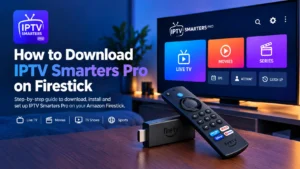
Quick answer: To download IPTV Smarters Pro on Firestick, turn on Developer Options, install the free Downloader app from the Amazon Appstore, allow it to install unknown apps, then download the app from the official IPTV Smarters website.
IPTV Smarters Pro is one of the most popular ways to watch IPTV on an Amazon Firestick. The catch is that it is not always listed in the Amazon Appstore in the UK, so many people get stuck at the very first step.
This guide shows you exactly how to download IPTV Smarters Pro on Firestick, how to set it up, how to fix common errors, and which Firestick models support it. If you are new to streaming, our guide to what IPTV is explains the basics first.
What Is IPTV Smarters Pro?
IPTV Smarters Pro is a media player app built for IPTV streams. You sign in with Xtream Codes API details or an M3U playlist, and the app organises everything into Live TV, Movies, Series, and Catch Up sections. You can read more about its features on the official IPTV Smarters website.
Is IPTV Smarters Pro Available on Firestick?
Yes, IPTV Smarters Pro works on most Firestick models. In the UK it is often missing from the Amazon Appstore, so the usual method is to install it with Downloader, a free Appstore app.
Before you start, check your model. Newer sticks run Amazon’s new Vega OS, a Linux-based system that cannot install Android app files, so the steps below only work on Fire OS devices. The compatibility table further down lists each model.
What You Need Before You Start
A few minutes of preparation saves a lot of frustration. Before you follow the steps on how to download IPTV Smarters Pro on Firestick, check the following:
- A Firestick running Fire OS. Go to Settings, My Fire TV, About to see your model, then compare it with the compatibility table below.
- At least 1 GB of free storage. The app itself is small, but channel logos, the TV guide, and cached data grow over time.
- A stable internet connection. Around 10 Mbps is enough for HD, and 25 Mbps or more is better for 4K.
- Your Amazon account signed in, so you can install Downloader from the Appstore.
- Login details from your IPTV provider, either a username, password, and server URL, or an M3U playlist link.
If you do not have a provider yet, you can start a free 24-hour IPTV UK trial and use the details from your welcome email.
How to Download IPTV Smarters Pro on Firestick
Follow these steps in order using your Firestick remote.
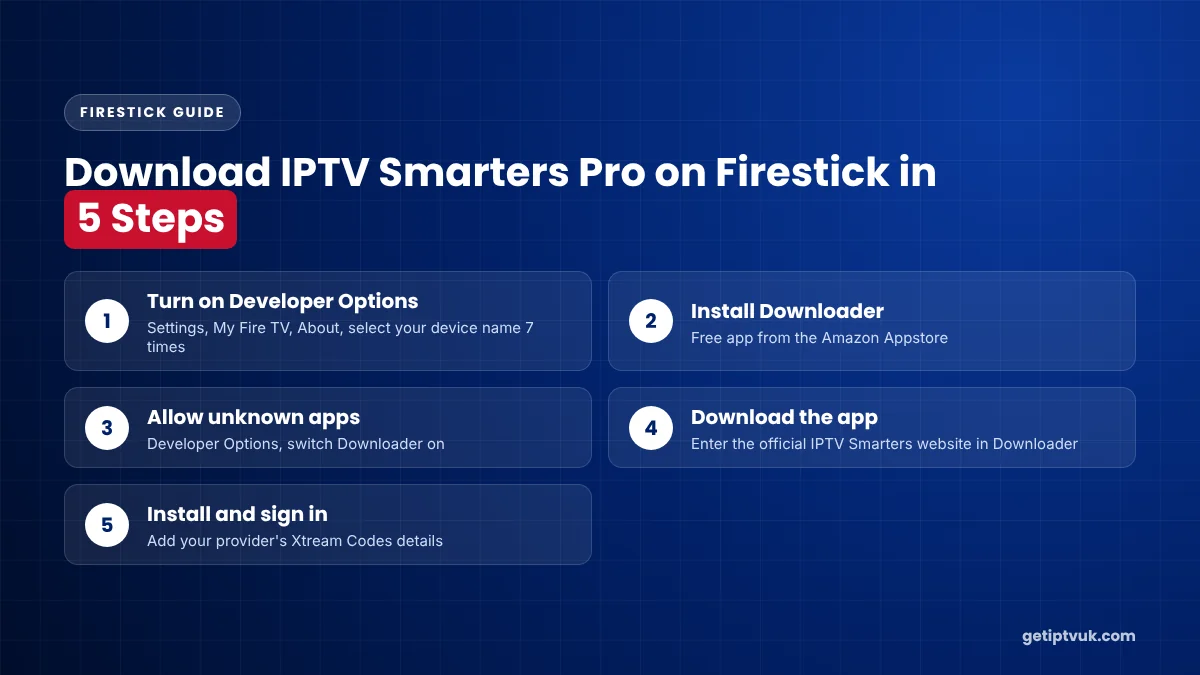
Turn on Developer Options
Go to Settings, then My Fire TV, then About. Press the select button on your device name seven times until a message says you are now a developer. The menu path matches Amazon’s official Fire TV developer guide.
Install Downloader
Return to the home screen, open Find, search for Downloader, and install the free app from the Amazon Appstore.
Allow unknown apps
Go to Settings, My Fire TV, then Developer Options. Turn on Apps from Unknown Sources, or on newer software choose Install Unknown Apps and switch Downloader on.
Download the app
Open Downloader, select the URL box, and enter the address of the official IPTV Smarters website. Choose the Firestick or Android TV version and start the download.
Install it
When the download finishes, select Install, then choose Done and delete the installation file to free up storage.
See how our IPTV UK service works before you decide.
Test every channel and feature for 24 hours, then choose.
Start Your Free 24H TrialHow Long Does It Take to Download IPTV Smarters Pro on Firestick?
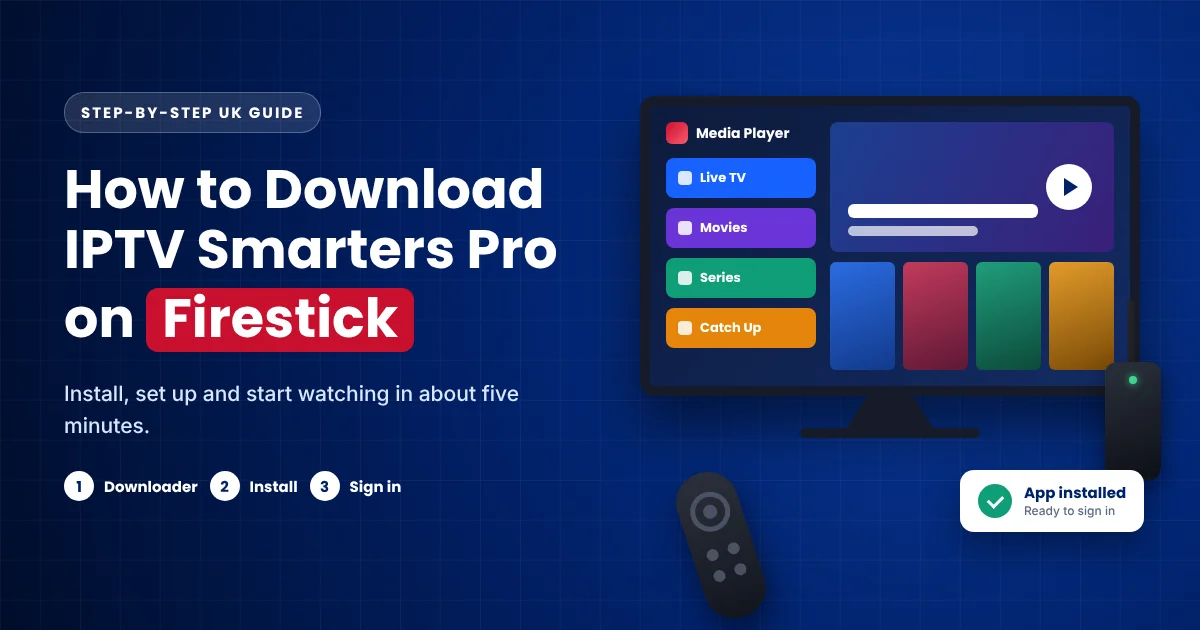
For most people, learning how to download IPTV Smarters Pro on Firestick takes about five minutes from start to finish. Here is a rough breakdown of each stage:
| Task | Typical time |
|---|---|
| Turn on Developer Options | About 1 minute |
| Install Downloader | About 1 minute |
| Download IPTV Smarters Pro | 1 to 2 minutes |
| Install and sign in | About 2 minutes |
The download itself depends on your broadband speed. If it takes much longer, restart your router, move the Firestick closer to your Wi-Fi, and try again. Once you have installed IPTV Smarters Pro on Firestick, later updates are even quicker because Developer Options and Downloader are already set up.
If you own more than one Firestick, repeat the same steps on each device. Your plan decides how many screens can stream at the same time, so check it before you sign in on several sticks.
How to Install and Set Up the App
Once IPTV Smarters Pro is on your Firestick, setting it up takes about two minutes.
Sign in with your provider details
- Open IPTV Smarters Pro and accept the terms.
- Select Add User, then Login with Xtream Codes API.
- Enter any name, plus the username, password, and server URL from your provider.
- Select Add User and wait for your channels, films, and series to load.
Add the app to your home screen
Hold the Home button, choose Apps, highlight IPTV Smarters Pro, press the Menu button, and select Move to front. The app will then appear on your home screen. For a full walkthrough, see our Firestick setup guide.
How to Update IPTV Smarters Pro on Firestick
Because IPTV Smarters Pro is installed from outside the Amazon Appstore, it does not update automatically like Appstore apps. When a new version is released, you install it over the top of the old one.
- Open Downloader and go to the official IPTV Smarters website again.
- Download the latest Firestick or Android TV version.
- Select Install. Your existing profile and settings are normally kept.
- Open the app and check that your channels load.
Updating every few months fixes bugs and keeps the app working well with newer Fire OS versions. If something looks wrong after an update, clear the app cache before you reinstall.
How to Use IPTV Smarters Pro
The home screen is split into clear sections, so finding something to watch is quick.
| Section | What it does |
|---|---|
| Live TV | Browse channels by category and check the TV guide (EPG). |
| Movies | Watch on-demand films from your provider’s library. |
| Series | Find box sets and TV shows, organised by season. |
| Catch Up | Replay recent programmes where your provider supports it. |
To see what our service includes, browse our full channel list.
Best IPTV Smarters Pro Settings for Firestick
IPTV Smarters Pro works well straight out of the box, but a few settings can make streaming smoother on a Firestick. Open the app, select Settings, and look for these options:
| Setting | Recommended choice | Why it helps |
|---|---|---|
| Player selection | Built-in player first | Starts streams quickly and suits most Firestick models. |
| Stream format | HLS (.m3u8) or MPEGTS (.ts) | If one format buffers, switching to the other often solves it. |
| TV guide (EPG) | Refresh after signing in | Loads programme times so you can see what is on. |
| Parental control | Set a PIN | Locks selected categories for younger viewers. |
| Automation | Auto-refresh channels and EPG | Keeps your channel list and guide up to date. |
Change one setting at a time and test a live channel after each change. That way, you know exactly what made the difference.
Common Installation Problems and Solutions
| Problem | Solution |
|---|---|
| Developer Options is missing | Go to About and press select on your device name seven times. |
| Downloader will not load the website | Check the address, restart your Firestick, and try again. |
| “App not installed” error | Free up storage, then download the file again. |
| Channels buffer or freeze | Restart your router and clear the app cache. |
| Login fails | Re-enter your details exactly as they appear in your welcome email. |
If the app slows down over time, learn how to clear the cache on your Firestick. For anything else, contact our support team.
How to Uninstall or Reinstall IPTV Smarters Pro
A clean reinstall fixes most stubborn problems, such as crashes on start-up or a channel list that will not load.
- Go to Settings, Applications, then Manage Installed Applications.
- Select IPTV Smarters Pro.
- Choose Clear data, then Uninstall.
- Download and install the app again by following the steps above.
- Sign in with your provider details.
You will need to enter your login details again after a reinstall, so keep your welcome email handy.
Security Tips for Installing Apps on Firestick
Installing apps from outside the Appstore is safe when you are careful about where they come from. Follow these rules to protect your Firestick and your personal data.
- Only download IPTV Smarters Pro from the official IPTV Smarters website, never from file-sharing sites or video comments.
- Avoid modified versions that promise free channels, as they often contain adverts or malware.
- Turn off the unknown apps permission for Downloader once the installation is complete.
- Keep your Firestick software up to date in Settings, My Fire TV, About.
- Keep your IPTV login details private and do not share your account.
Tips to Keep Your Firestick Running Smoothly
A Firestick has limited memory and storage, so a little regular maintenance keeps IPTV Smarters Pro fast and responsive.
- Clear the cache of apps you use often, especially your IPTV player.
- Uninstall apps you no longer use to free up storage.
- Restart your Firestick once a week from Settings, My Fire TV, Restart.
- Use the HDMI extender that came in the box if the Wi-Fi signal is weak behind your TV.
- For the most stable picture, connect with an Ethernet adapter instead of Wi-Fi.
These small habits reduce buffering and keep IPTV Smarters Pro on Firestick opening quickly, especially on older models such as the Fire TV Stick Lite.
Firestick Device Compatibility
IPTV Smarters Pro needs a Firestick running Fire OS, Amazon’s Android-based system. The table below is based on Amazon’s Fire TV device specifications.
| Model | Operating system | IPTV Smarters Pro |
|---|---|---|
| Fire TV Stick 4K Max (2nd Gen, 2023) | Fire OS 8 | ✓ Yes |
| Fire TV Stick 4K (2nd Gen, 2023) | Fire OS 8 | ✓ Yes |
| Fire TV Stick 4K Plus (2025) | Fire OS 8 | ✓ Yes |
| Fire TV Stick 4K Max (1st Gen, 2021) | Fire OS 7 | ✓ Yes |
| Fire TV Stick HD (2024) | Fire OS 7 | ✓ Yes |
| Fire TV Stick Lite (2020) | Fire OS 7 | ✓ Yes |
| Fire TV Stick 4K Select (2025) | Vega OS | ✗ No |
| Fire TV Stick HD (2026) | Vega OS | ✗ No |
| Fire TV Stick 4K (3rd Gen, 2026) | Vega OS | ✗ No |
Using another device? We also have setup guides for Smart TV, Android TV, and iPhone and iPad.
IPTV Smarters Pro vs Other IPTV Players
Here is how IPTV Smarters Pro compares with two popular alternatives.
| Feature | IPTV Smarters Pro | TiviMate | GSE Smart IPTV |
|---|---|---|---|
| Best for | Beginners | Live TV fans | Advanced users |
| Ease of setup | Very easy | Easy | Moderate |
| Xtream Codes login | ✓ Yes | ✓ Yes | ✓ Yes |
| TV guide (EPG) | ✓ Yes | ✓ Yes | ✓ Yes |
| Cost | Free to download | Free version, premium extras | Free version available |
For most people, IPTV Smarters Pro is the easiest place to start, which is why it is the first app we recommend in our installation guides.
Why Choose Our IPTV UK Service?
IPTV Smarters Pro needs a reliable source, and that is where we come in. Our IPTV UK service works with IPTV Smarters Pro and comes with full setup help.
24/7 Support
Help by WhatsApp and email, from setup to billing.
One-Time Payments
Clear IPTV UK pricing with no auto-renewal.
Multi-Device
Smart TV, Android, iOS, Firestick, MAG, and PC.
Try It First
A 24-hour IPTV trial before you commit.
Ready to choose a plan?
Compare plans, pick the one that suits your household, and order in a few steps.
Buy NowFrequently Asked Questions
Conclusion
Now you know how to download IPTV Smarters Pro on Firestick, set it up, and fix the most common problems. Check your Firestick model first, follow the steps in order, and you will be watching in minutes.
Remember that the app is only a player. Pair it with a reliable IPTV UK service and you get live TV, sport, films, and series in one place. Our IPTV UK FAQ answers more questions, and Ofcom’s official UK information and guidance is useful for wider TV and consumer advice.
Try Our IPTV UK Service Free for 24 Hours
- No credit card required
- Instant activation
- Cancel anytime